Runline
← Todas las guías

Guía

Usa un modelo abierto sin conexión

El modelo de Apple va muy bien para lo rápido. Cuando quieras otro, como Qwen, Gemma o Llama, Runline lo descarga de Hugging Face y lo ejecuta en tu dispositivo con MLX. Lo que lee no sale de ahí, y funciona sin red.

·4 min de lectura·iPhone, iPad y Mac
Únete a la beta
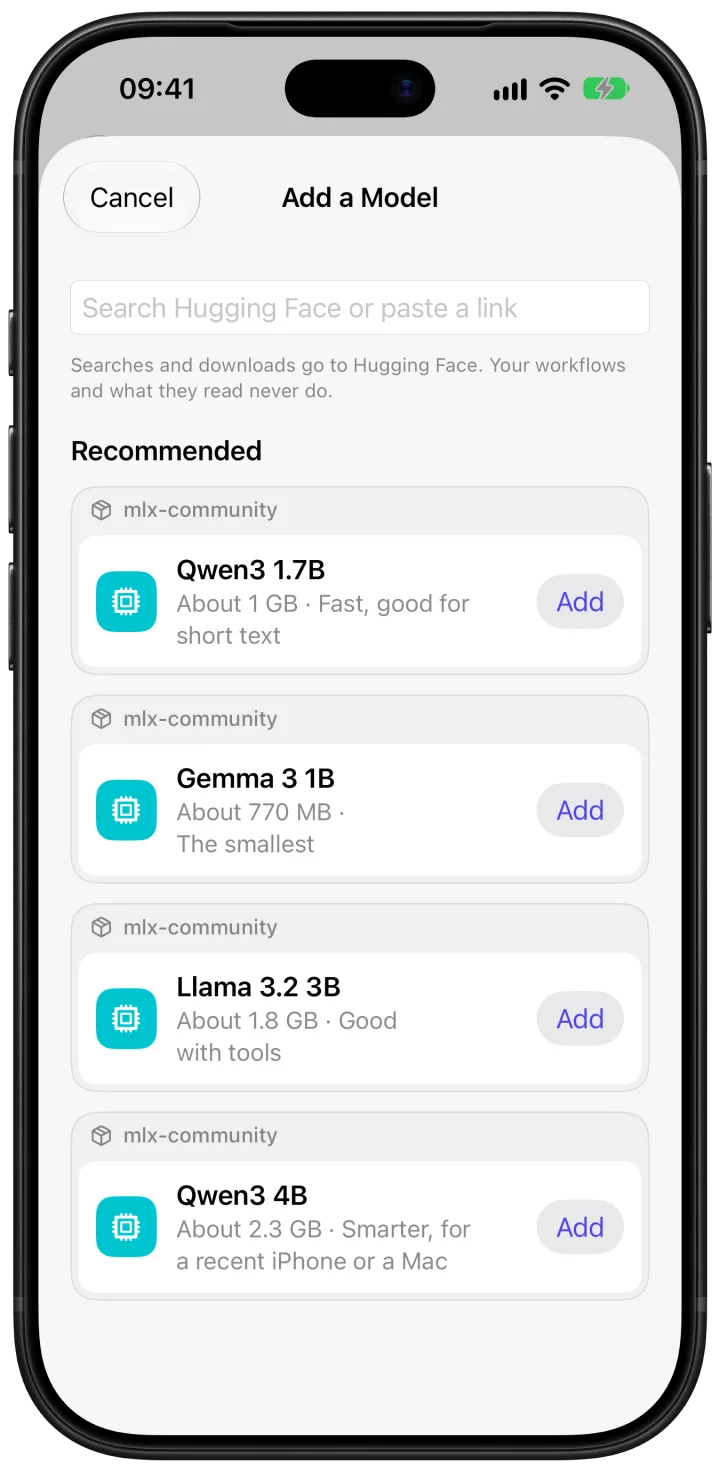
La hoja Add a Model: buscar en Hugging Face o pegar un enlace, y cuatro modelos recomendados de mlx-community
1

Añade el modelo

Ve a Settings › Models y, en la sección On this device, toca Add model. En el Mac está en los ajustes de Runline, en la pestaña Models.

En la hoja Add a Model puedes buscar en Hugging Face, pegar el enlace de un modelo o elegir uno de los cuatro recomendados de mlx-community:

Qwen3 1.7B≈ 1 GB · rápido, para textos cortos
Gemma 3 1B≈ 770 MB · el más pequeño
Llama 3.2 3B≈ 1,8 GB · bueno con herramientas
Qwen3 4B≈ 2,3 GB · más listo

Toca Add junto al que quieras. Runline solo ofrece modelos abiertos, que se descargan sin cuenta ni claves.

2

Espera a la descarga

La descarga empieza al añadirlo. Mantén Runline abierta mientras termina; cuando acaba, el modelo aparece como Ready.

Las búsquedas y descargas van a Hugging Face, pero tus workflows y lo que leen nunca salen del dispositivo.

3

Úsalo en un paso

Abre un workflow, toca un paso de IA, como Ask o Classify, y en el campo Model del inspector elige el modelo que acabas de descargar. En If it fails puedes indicar otro modelo para que lo intente una vez, por ejemplo el de Apple.
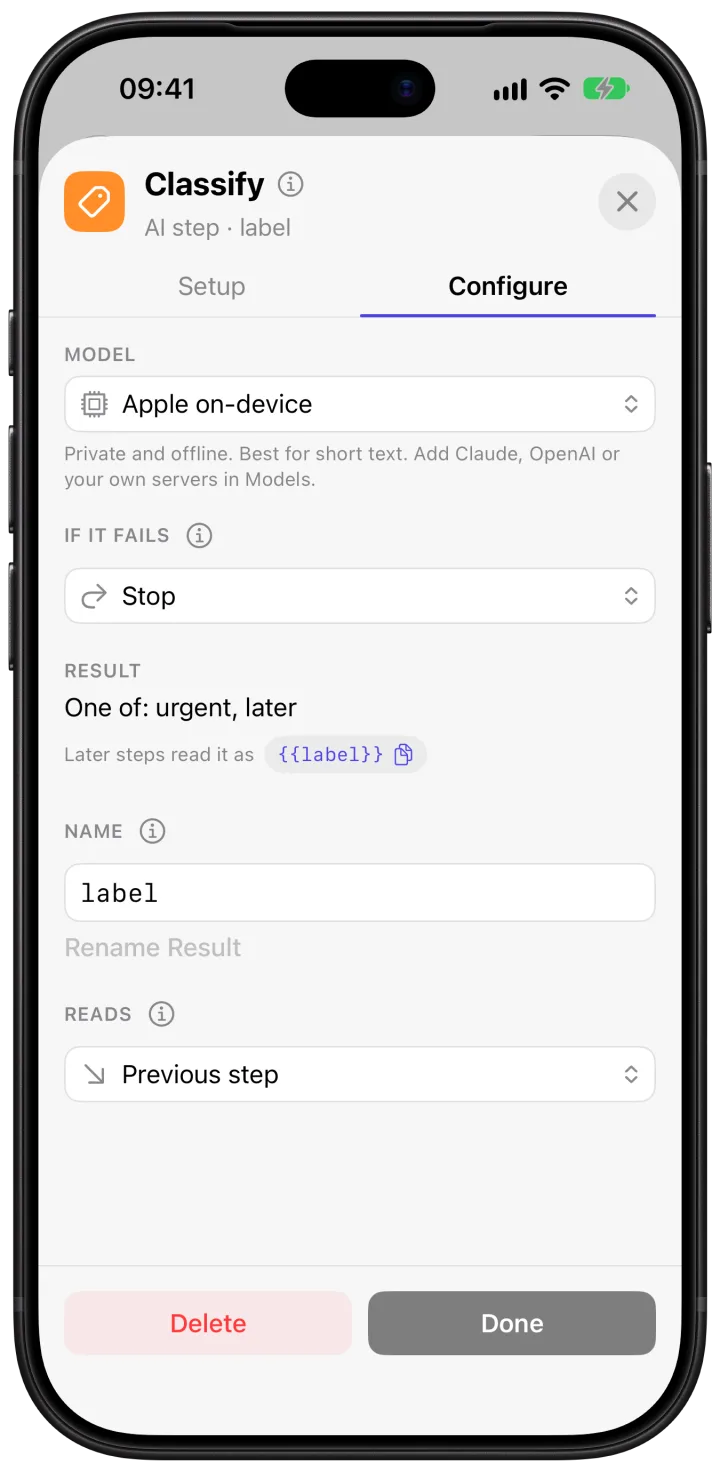
El inspector de un paso Classify: el modelo, qué hacer si falla y cómo leen el resultado los pasos siguientes

Si el dispositivo tiene poca memoria para un modelo, Runline te avisa junto al botón de descarga. Empieza por uno pequeño y sube si te hace falta.

4

En tus otros dispositivos

La lista de modelos se sincroniza por iCloud, pero cada dispositivo descarga su propia copia, que no entra en las copias de seguridad. En el iPad o el Mac, abre Models y toca Download en el modelo. Una ejecución nunca empieza una descarga, así que descárgalo antes en cada dispositivo donde lo vayas a usar.

Para liberar espacio, Delete Download Only borra los archivos de ese dispositivo y deja el modelo en tu lista. Remove from All Devices lo quita de todas partes; los pasos que lo usaban tendrán que elegir otro.
Atajos que entienden.

Runline es gratis y su beta ya está abierta en TestFlight para iPhone, iPad y Mac.

Únete a la beta
← All guides

Guide

Use an open model offline

Apple's model is great for quick jobs. When you want another one, such as Qwen, Gemma or Llama, Runline downloads it from Hugging Face and runs it on your device with MLX. What it reads stays there, and it works without a connection.

·4 min read·iPhone, iPad and Mac
Join the beta
The Add a Model sheet: search Hugging Face or paste a link, and four recommended models from mlx-community
1

Add the model

Go to Settings › Models and, under On this device, tap Add model. On the Mac it's in Runline's settings, in the Models tab.

In the Add a Model sheet you can search Hugging Face, paste a model's link or pick one of the four recommended from mlx-community:

Qwen3 1.7B≈ 1 GB · fast, for short text
Gemma 3 1B≈ 770 MB · the smallest
Llama 3.2 3B≈ 1.8 GB · good with tools
Qwen3 4B≈ 2.3 GB · smarter

Tap Add next to the one you want. Runline only offers open models, which download without an account or keys.

2

Wait for the download

The download starts when you add it. Keep Runline open until it finishes; then the model shows as Ready.

Searches and downloads go to Hugging Face, but your workflows and what they read never leave the device.

3

Use it in a step

Open a workflow, tap an AI step such as Ask or Classify, and in the inspector's Model field pick the model you just downloaded. In If it fails you can set another model to try once, such as Apple's.

A Classify step's inspector: its model, what to do if it fails and how the next steps read its result

If a device is short on memory for a model, Runline warns you next to the download button. Start with a small one and move up if you need to.

4

On your other devices

The list of models syncs through iCloud, but each device downloads its own copy, which stays out of backups. On the iPad or Mac, open Models and tap Download on the model. A run never starts a download, so download it first on every device where you'll use it.

To free space, Delete Download Only removes the files from that device and keeps the model in your list. Remove from All Devices takes it out everywhere; steps that used it will need another model.

Shortcuts that understand.

Runline is free, and its beta is open on TestFlight for iPhone, iPad and Mac.

Join the beta