Runline
← Todas las guías

Guía

Resume cualquier artículo desde Safari

Compartes la página y, en unos segundos, tienes tres puntos y una línea sobre por qué importa. El resumen lo hace el modelo de Apple en tu iPhone, sin pasar por ningún servicio de IA externo.

·4 min de lectura·iPhone, iPad y Mac
Únete a la beta
1

El workflow ya viene en la app

Runline trae el ejemplo Summarize an article. Tiene dos pasos, y puedes abrirlo y cambiarlo como cualquier otro workflow:

Read Web Page

Abre el enlace que le llega y se queda con el texto de la página.

Ask · Apple on-device

«Summarize this article in three short bullet points, then one line on why it matters.»

Toca el paso Ask para cambiar la instrucción: pídele el resumen en español, en una sola frase o con las cifras importantes. Para probarlo antes de crear el atajo, abre el workflow, toca Test y pega un enlace.

2

Crea el atajo

En Atajos, crea un atajo nuevo y llámalo, por ejemplo, «Summarize Article». Añade la acción Run Workflow de Runline, elige el workflow y pásale la Entrada del atajo:

Run Workflow

Run Summarize an article on Entrada del atajo

Termina con Mostrar resultado para ver el resumen al acabar.

3

Ponlo en la hoja de compartir

Abre los detalles del atajo, activa Mostrar en la hoja de compartir y deja que reciba solo URL. Así aparece al compartir una página, y no al compartir una foto o un texto.

Mostrar en la hoja de compartir
Tipos de entradaURL
4

Úsalo desde Safari

En Safari, toca Compartir y elige Summarize Article. Runline lee la página, el modelo la resume y el resultado vuelve a Atajos, que lo muestra. Funciona igual desde cualquier app que comparta enlaces.
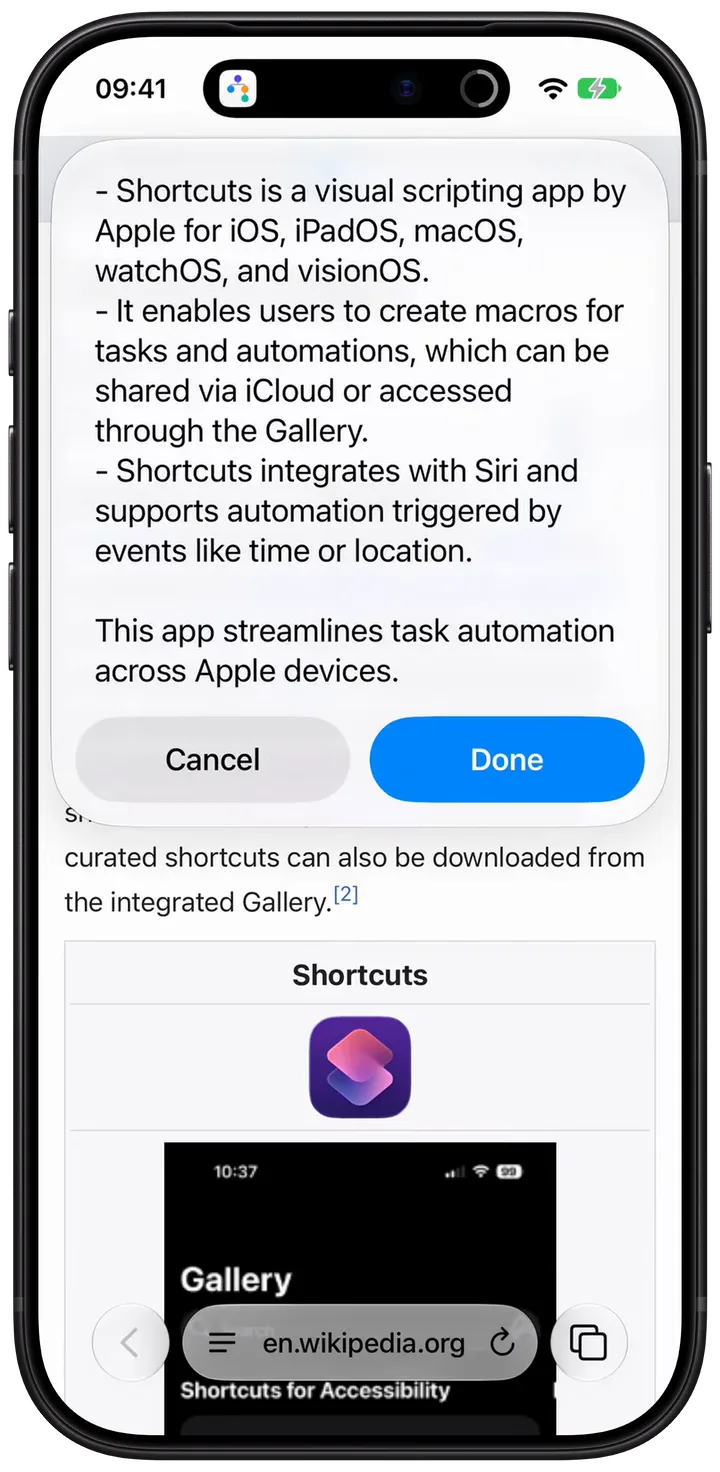
Un iPhone con el resumen en tres puntos de un artículo de Wikipedia sobre Atajos

Runline no guarda los artículos ni los resúmenes, salvo que actives «Keep inputs and outputs» en sus ajustes. Si lo activas, se sincronizan con tu historial por tu iCloud.

5

Para ir más lejos

  • Envía el resumen a un chat en vez de mostrarlo, como en la idea Resumen a Telegram.
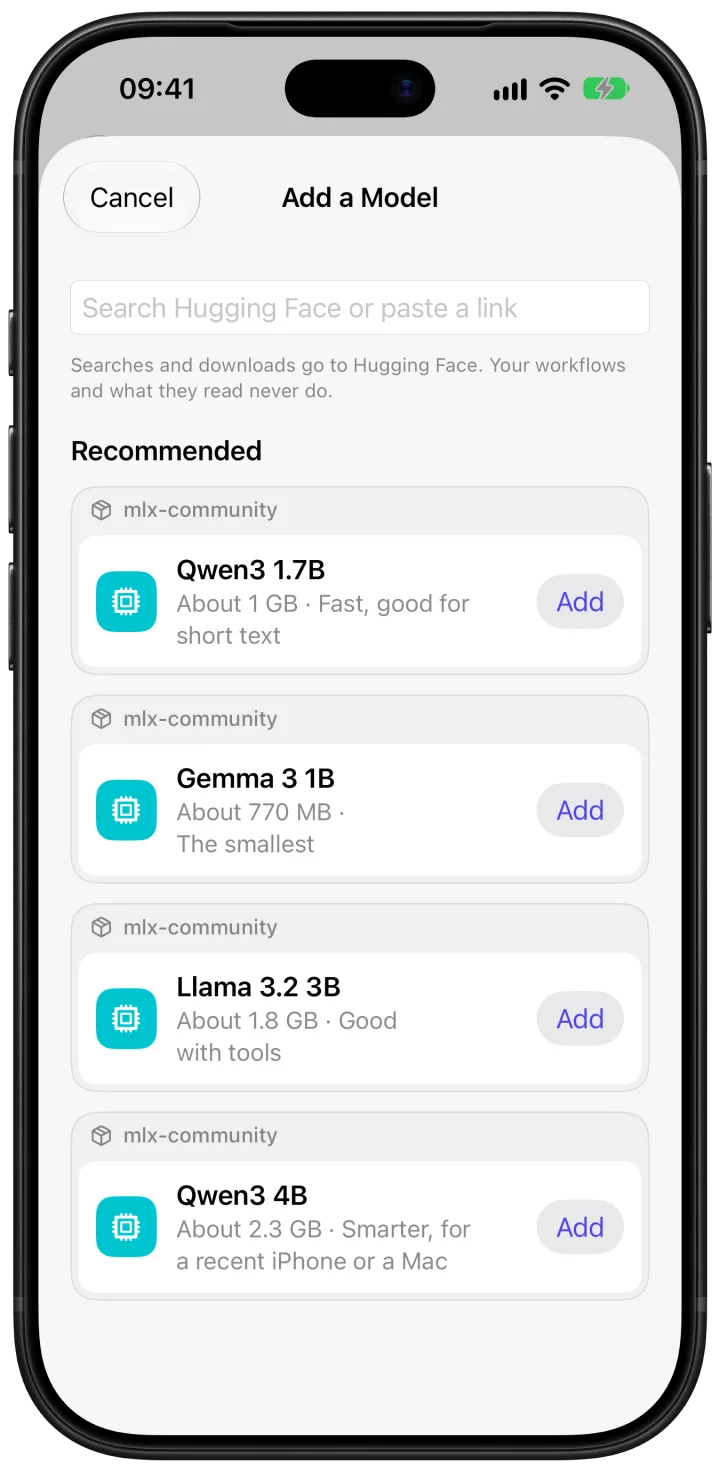
  • Para artículos muy largos, elige en el paso Ask un modelo más grande. Si está fuera del dispositivo, Runline te pide permiso antes de enviarle nada.
Atajos que entienden.

Runline es gratis y su beta ya está abierta en TestFlight para iPhone, iPad y Mac.

Únete a la beta
← All guides

Guide

Summarize any article from Safari

Share the page and, a few seconds later, you have three points and one line on why it matters. Apple's model writes the summary on your iPhone, without going through any outside AI service.

·4 min read·iPhone, iPad and Mac
Join the beta
1

The workflow comes with the app

Runline includes the Summarize an article example. It has two steps, and you can open and change it like any other workflow:

Read Web Page

Opens the link it receives and keeps the page's text.

Ask · Apple on-device

“Summarize this article in three short bullet points, then one line on why it matters.”

Tap the Ask step to change the instruction: ask for the summary in another language, in a single sentence, or with the key numbers. To try it before you build the shortcut, open the workflow, tap Test and paste a link.

2

Build the shortcut

In Shortcuts, create a new shortcut and name it, for example, “Summarize Article”. Add Runline's Run Workflow action, pick the workflow and hand it the Shortcut Input:

Run Workflow

Run Summarize an article on Shortcut Input

End with Show Result to see the summary when it's done.

3

Put it in the share sheet

Open the shortcut's details, turn on Show in Share Sheet and let it receive only URLs. It then shows up when you share a page, and not when you share a photo or some text.

Show in Share Sheet
Input typesURLs
4

Use it from Safari

In Safari, tap Share and choose Summarize Article. Runline reads the page, the model sums it up and the result goes back to Shortcuts, which shows it. It works the same from any app that shares links.

An iPhone showing a three-point summary of a Wikipedia article about Shortcuts

Runline keeps neither the articles nor the summaries, unless you turn on “Keep inputs and outputs” in its settings. Then they sync with your run history through your iCloud.

5

Going further

  • Send the summary to a chat instead of showing it, like the Summary to Telegram idea.
  • For very long articles, pick a bigger model in the Ask step. If it runs outside the device, Runline asks before sending it anything.

Shortcuts that understand.

Runline is free, and its beta is open on TestFlight for iPhone, iPad and Mac.

Join the beta